
Jai Club APK 2026: Clean Reinstall Without Losing Your Account
When updating over the top is not enough, a clean reinstall usually is. Here is what is stored on the server and what lives on your phone, the order that works, and how to check your wallet afterwards.
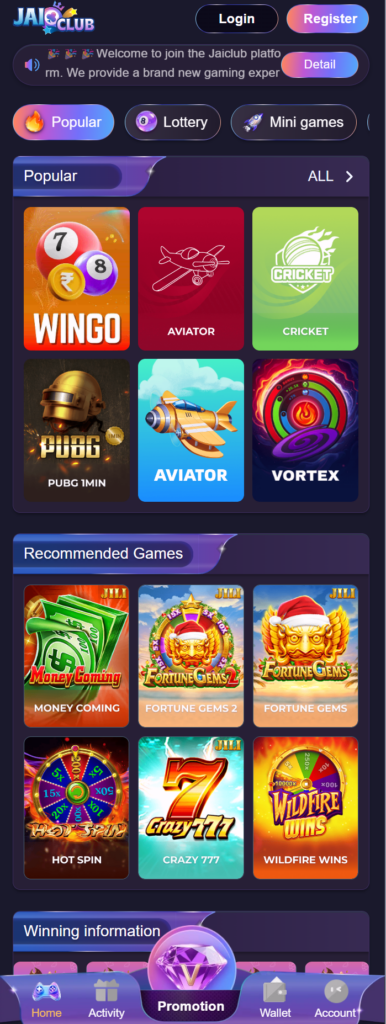
If the Jai Club app on your phone has started crashing at launch, freezing on the splash screen or showing an empty lobby, and installing the newest file over it changed nothing, a clean reinstall is the next step. It sounds drastic, but for most members it is not: your account, balance and history are kept by Jai Club's official site and its servers, not inside the app. Removing the app removes only the copy on your phone.
This guide is for the cases where a normal update does not help. It explains when a clean reinstall is worth doing, what it erases and what it leaves alone, the order of steps that avoids the usual problems, and what to check once you are signed in again. The official ways to get the app, including the current build for 2026, are listed on our download page.
When a clean reinstall is the right fix
Most app problems are solved by something smaller. Try these first, in this order: restart the phone, switch between Wi-Fi and mobile data, clear the app's cache from Android settings, and install the current build over the old one. If your build is simply out of date and fails at login, the Jai Club piece on login APK old version covers that update in detail and is usually all you need.
A clean reinstall is the right move when the app itself has become damaged or confused, which tends to show up as:
- the app closes the moment it opens, every time, even after a restart;
- a white or black screen that never moves past the logo;
- games or the wallet screen that stay blank while the mobile browser shows them normally;
- an install over the top that stops with a message that the app could not be installed or the package appears to be invalid;
- an app that was moved to an SD card or restored from a backup and has behaved oddly since.
One quick test tells you whether the problem is the app or the account. Sign in with the same number and password in your phone's browser. If the browser works, the account is fine and a reinstall is a reasonable next step. If the browser refuses your password as well, the problem is the login details, and the password-reset steps on the sign-in page come first.
What lives on the server and what lives on your phone
Knowing where each piece of your account is kept takes the fear out of uninstalling. As a rule of thumb:
- On the server (kept after a reinstall): your registered mobile number, password, wallet balance, deposit and withdrawal records, game history, saved bank details, KYC status, VIP progress and your own invite code.
- On your phone (erased by a clean reinstall): the saved login session, cached images and lobby data, small settings such as sound or language, and any downloaded installer files you never deleted.
In practice, the only thing you lose is the convenience of being signed in already. That is why the one essential step before you uninstall is making sure you know the mobile number and password for the account. If you are not sure of the password, reset it while the number is still in your hands and before you remove the app.
Uninstall, clear storage, reinstall: the order that works
The order matters, because doing these steps the other way round can leave old data behind or send you to the wrong file. Android menus differ a little between brands, but the route is similar on all of them:
- Confirm your login works in the browser with your number and password, as described above.
- Clear the app's storage. Open Settings, then Apps, find Jai Club, tap Storage and choose Clear storage (on some phones, Clear data). This removes the local data that is often the cause of the crash.
- Uninstall the app from the same App info screen.
- Delete old installers. Open your Downloads folder and remove any earlier Jai Club APK files, so you cannot reinstall a damaged or outdated copy by accident.
- Restart the phone. It releases anything the old app was still holding.
- Get the current build through the official route listed on the download page. Do not use a file from a chat, a mirror site or an “APK 2026” collection.
- Install it. If Android asks, allow your browser to install apps from this source only for this install, then switch the setting back off afterwards.
Because the old app is gone, Android will treat the new file as a fresh install rather than an update. That is expected after a clean reinstall. It also means the signature check you get when updating over the top does not happen, so where the file came from matters more than usual. Take it only from the official route.
Signing back in and checking your wallet
Open the new app and sign in with your mobile number and password. If an OTP is requested, it goes to your registered number; nobody else should ever ask you for it. Then spend a minute checking that everything came back as it should:
- the wallet balance matches what the browser showed before the reinstall;
- your recent deposit and withdrawal records are listed in the history;
- the saved bank account is the one you added, with the same partly hidden number;
- your profile shows the expected level and invite code.
If any of these look different, do not try to fix it by reinstalling again. Take a screenshot and contact customer care from inside the app with your device model and a short description. A saved bank account you do not recognise is a security issue, so change your password first.
If the new APK still won't open
A clean install that still fails usually points to the phone rather than the app. Check these before anything else:
- Storage space: very low free storage can stop an app from starting. Free some space and try again.
- Android version: an older phone may no longer run the current build. The mobile browser uses the same account and wallet and has nothing to install.
- System WebView: many apps rely on Android System WebView and Chrome. Update both from the Play Store.
- Battery and data savers: aggressive saver modes can block an app on its first start. Turn them off for the first launch.
- Security warnings: if Play Protect flags the file or Android reports a conflict with another package, stop and delete the file; it may not be genuine.
Avoid anyone who offers a “working” APK, a “repair tool” or a remote fix in return for your login or a fee. Those offers are how accounts are taken over. If nothing on this list helps, use the browser for now and send customer care the details of the error.
18+ only. Jai Club is a real-money gaming platform for adults. Every round is a game of chance and nothing here is a way to guarantee a win. Play only with money you have set aside for entertainment; deposit limits and self-exclusion are explained on the responsible-play page.
Frequently Asked Questions
Will uninstalling the Jai Club app delete my balance?
No. Your balance, history and account details are kept on the platform's servers. Uninstalling removes only the app and its local data from your phone. Make sure you know your number and password before you uninstall, so you can sign in again.
Should I clear storage or just uninstall?
Clear storage first, then uninstall. Clearing storage removes the local data that is usually behind a crash, and uninstalling afterwards makes sure nothing from the old copy is left when you install the new one.
Is there a special Jai Club APK for 2026?
No. There is one current build, which changes whenever the platform ships an update. Get it through the official route on the download page and avoid files labelled with a year, mod or VIP on third-party sites.